Your Google Business Profile (GBP) is managed directly through a dashboard found on Google Search — there's no separate website you need to log into anymore, like there was in the past.
You can access everything (posts, photos, reviews, insights, etc.) right from your normal Google account.
For Desktop:
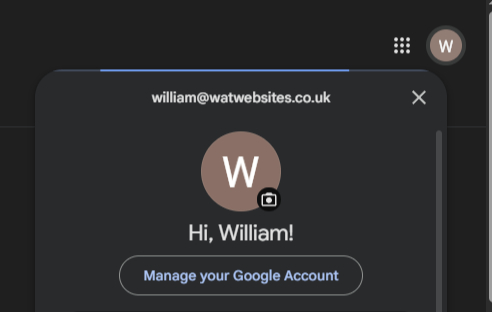
1. Sign in to your Google Account. Make sure you're signed in to the same Gmail account that owns or manages your business profile.
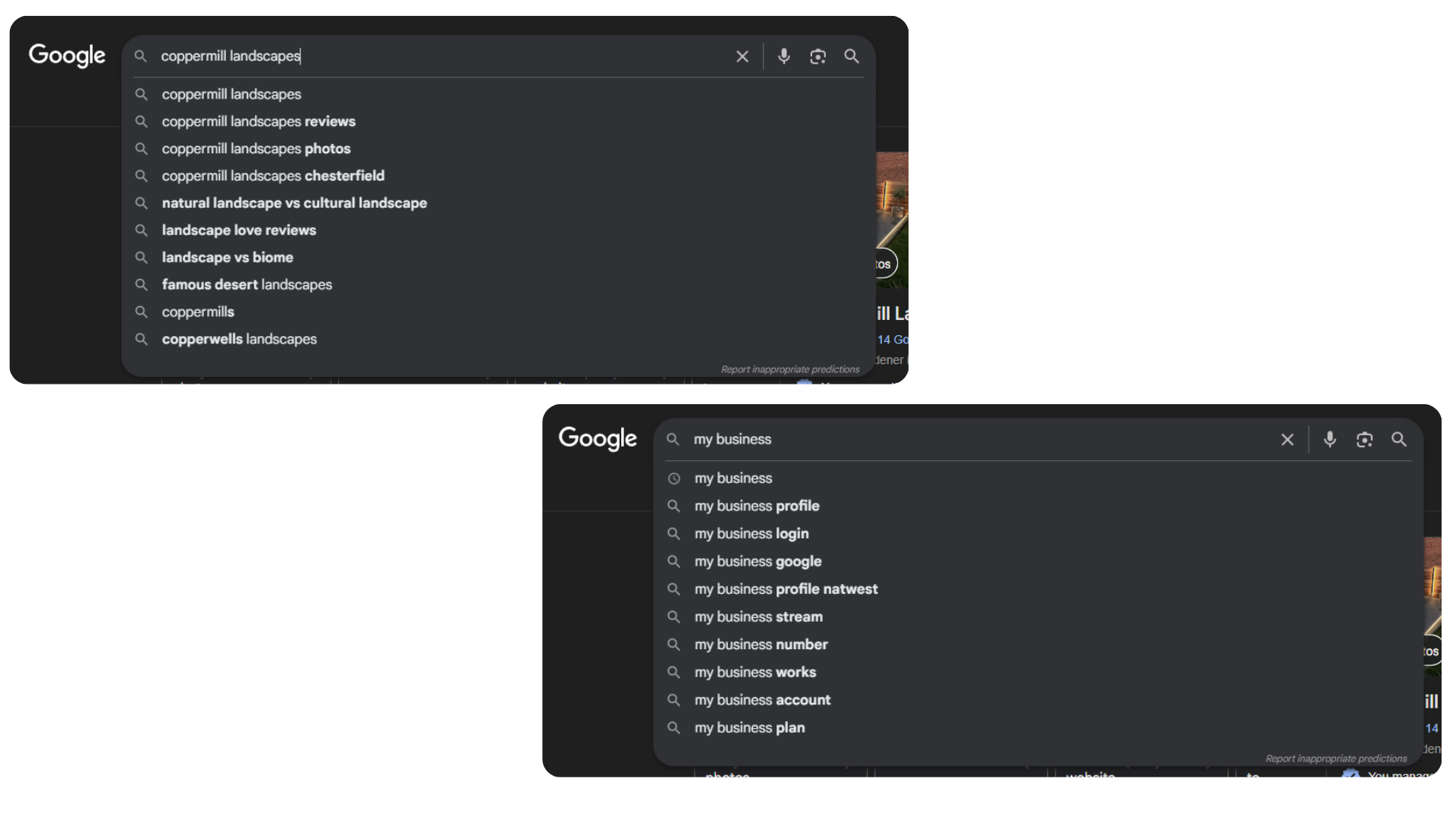
2. Search for your business name on Google. Type your business name exactly as it appears on your profile (for example "Cazapwent Landscapes"). If you only have one Business Account on your log in, you can also type "my business".
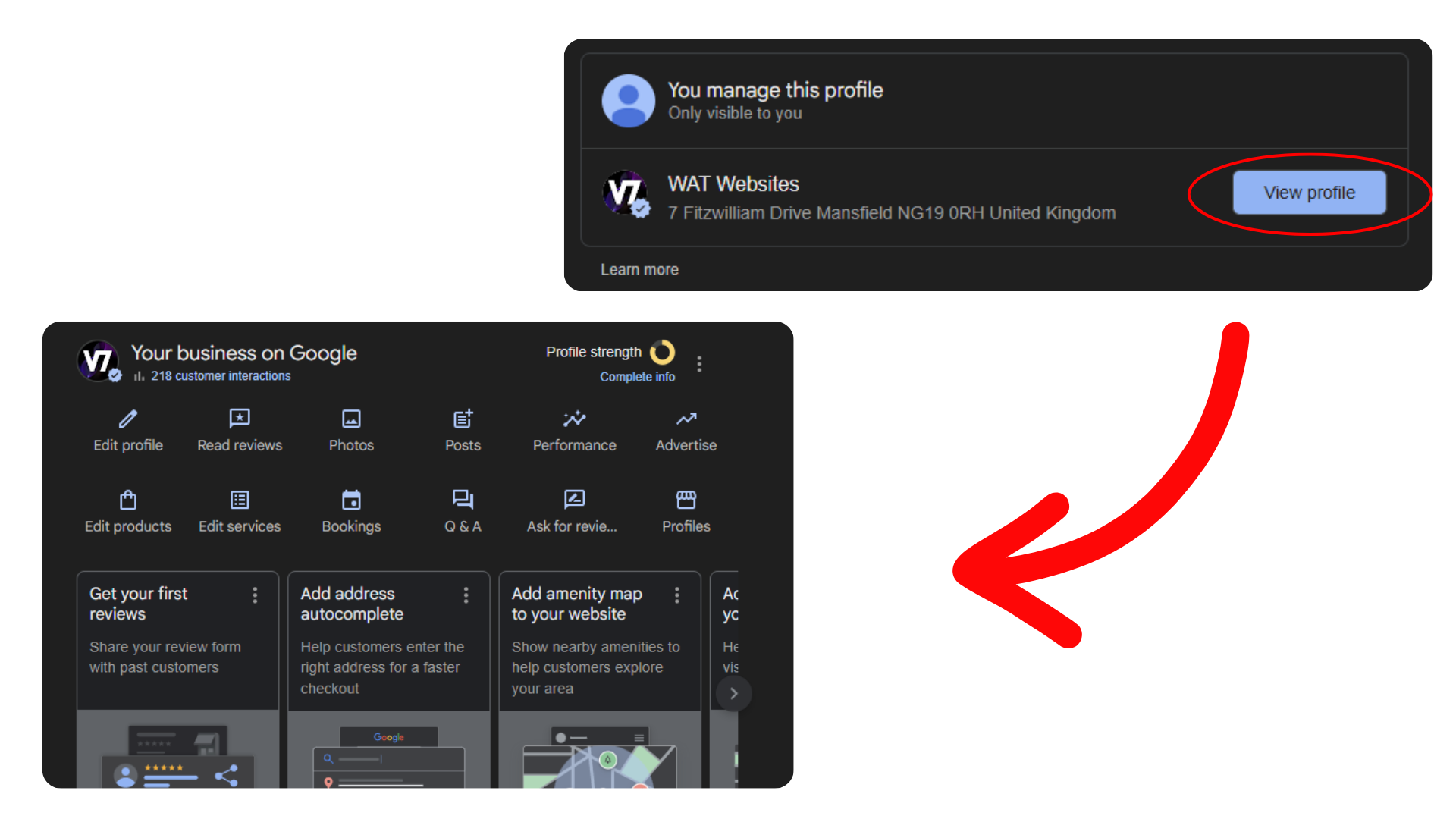
3. Find your Management Panel. At the top of the search results, you'll see a panel with options such as "edit profile, read reviews, photos, etc." If you don't see it straight away, sometimes you have to scroll down until you find a section that says "You manage this Business Profile" and click view profile, then the dashboard should load.
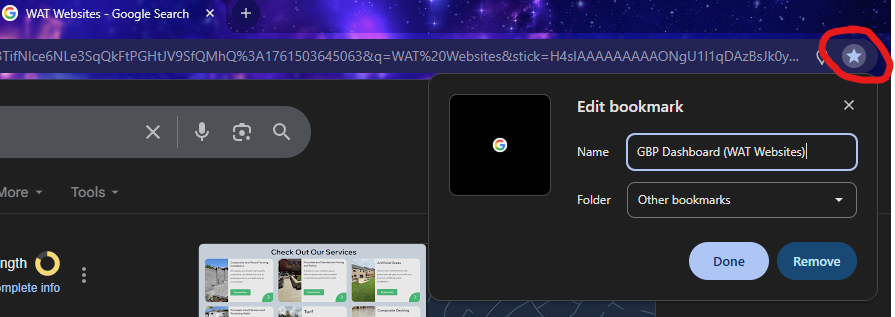
4. Favourite this section. Bookmark this page in your browser so you can easily find it again later. Every change you make to your Google Business Profile is done through this tab, so you'll need it for all the upcoming lessons.
For Mobile:
1. Sign in to your Google Account. Make sure you're signed in to the same Gmail account that owns or manages your business profile.
2. Search for your business name on Google. Type your business name exactly as it appears on your profile (for example "WAT Websites"). If you don't see it straight away, sometimes you have to scroll down. Make sure you are using google.com and not other browsers.
![Mobile step 2 - searching for a business name on Google via mobile browser [border]](/Images/Help-Centre/how-to-access-your-gbp/WAT-Website-Search.png)
3. Find your Management Panel. Management panel on mobile looks a little different to desktop, you will have your business name with tabs showing "overview, services, photos, reviews, etc."
![Mobile step 3 - WAT Websites GBP dashboard as it appears on a mobile device [border]](/Images/Help-Centre/how-to-access-your-gbp/WAT-Websites-GBP-Phone-Dashboard_edited.png)
4. Favourite this section. Bookmark this page on your phone so you can easily find it again later. Every change you make to your Google Business Profile is done through this tab, so you'll need it for all the upcoming lessons.


