A Google Business Profile (GBP) is one of the most powerful free tools your local business can use. In this article I'll show you how to get started and set one up like a pro.
Video Walkthrough
Step-By-Step GBP Creation
1. Go to the Google Business Profile Website
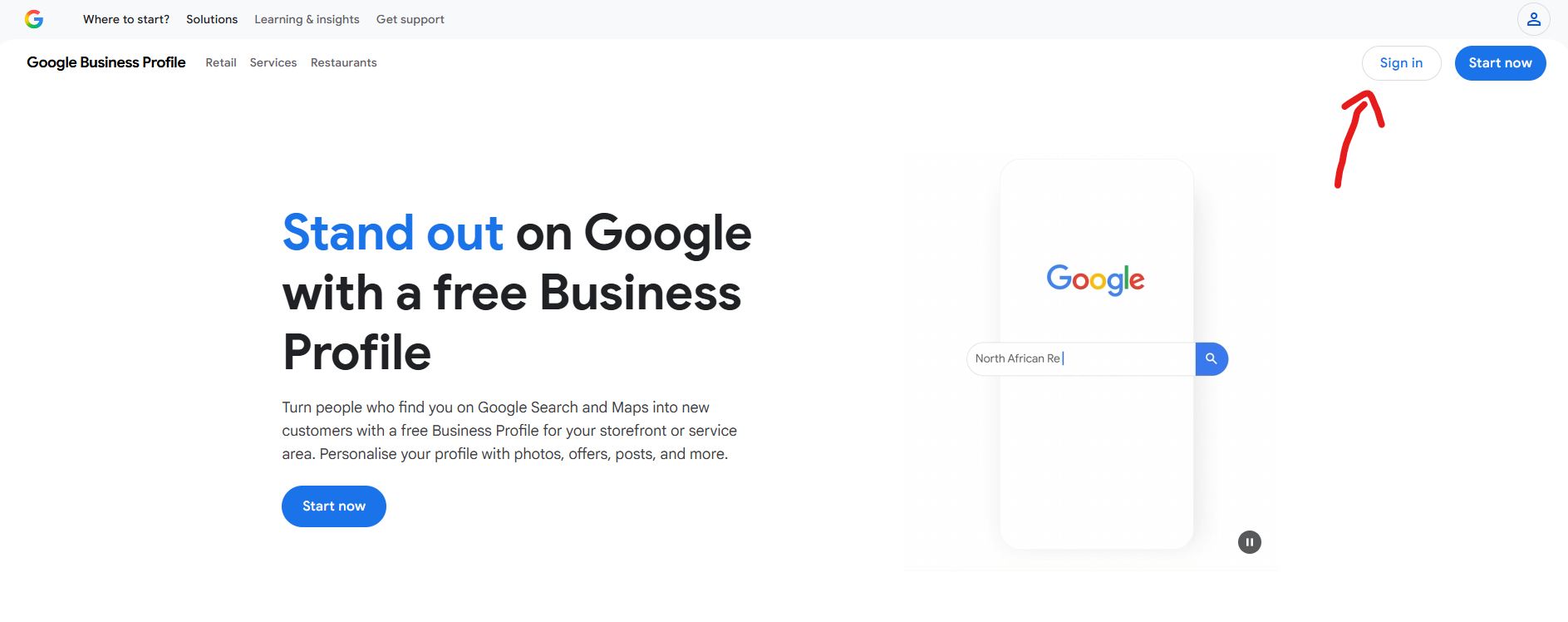
Head to business.google.com and make sure you are logged into a Google account.
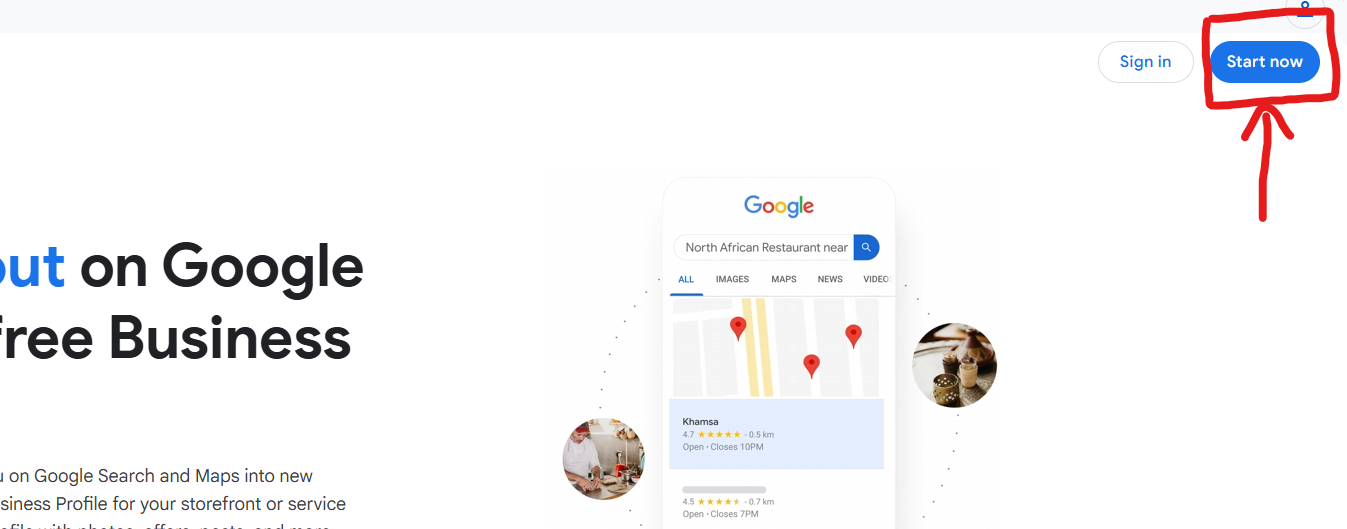
2. Press the "Start Now" Button
In the top right of the screen there is a blue "Start Now" button — press this to begin.
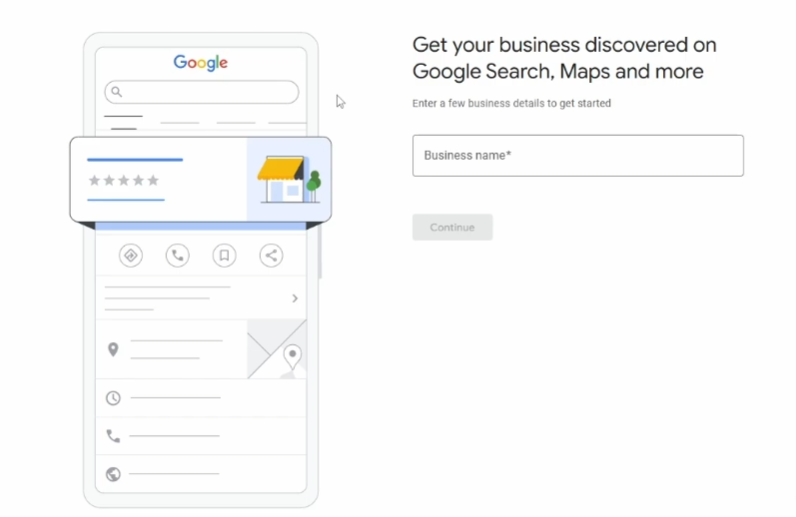
3. Enter Your Business Name
You'll be taken to a page to create your profile. Start by entering the name of your business.
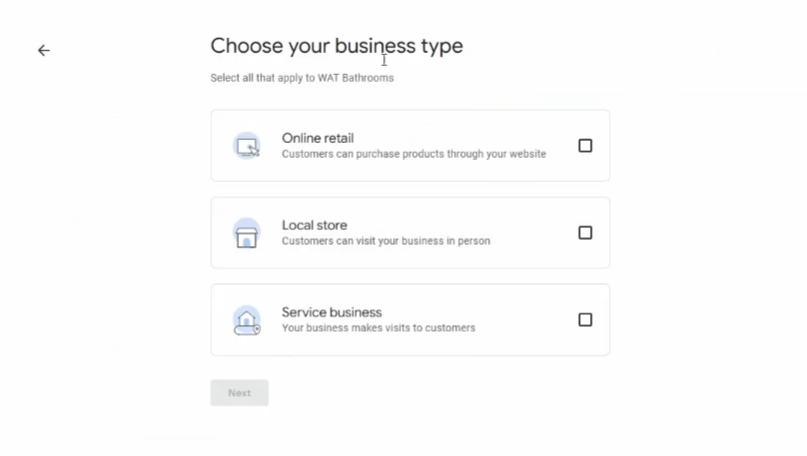
4. Choose Your Business Type
Select your business type from the options: Online Retail, Local Store, or Service Business. Make sure you pick the correct one that applies to you.
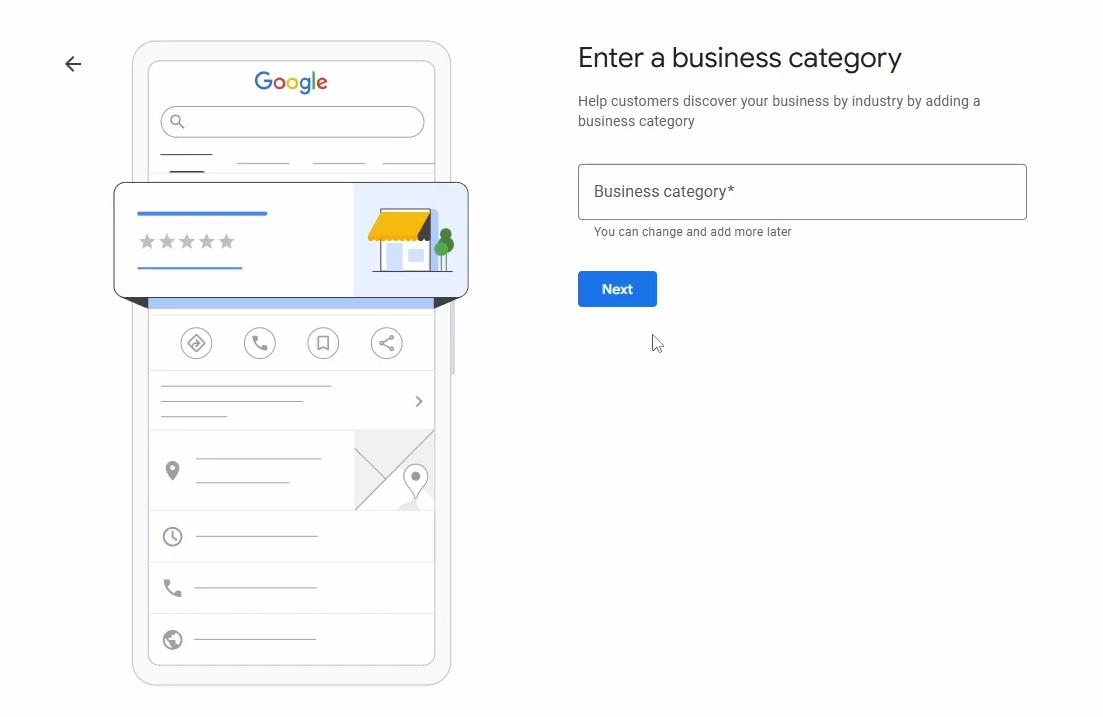
5. Enter Your Business Category
This step is very important as it directly affects what you rank for. The best way to choose your category is to search for your competitors on Google and find the top 3 profiles. Click "Suggest an edit" on each profile to see what their Primary Category is — then select that same category for yours.
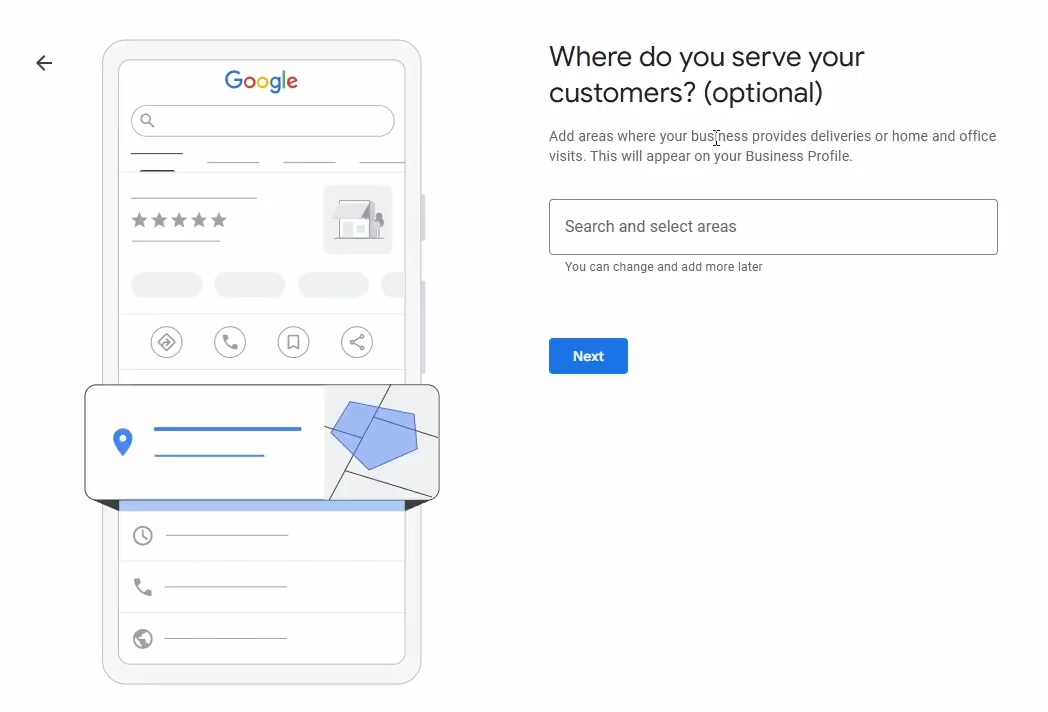
6. Choose Your Service Area
Select the locations that you serve. Be specific here — the more accurate you are, the better Google can match you to local searches.
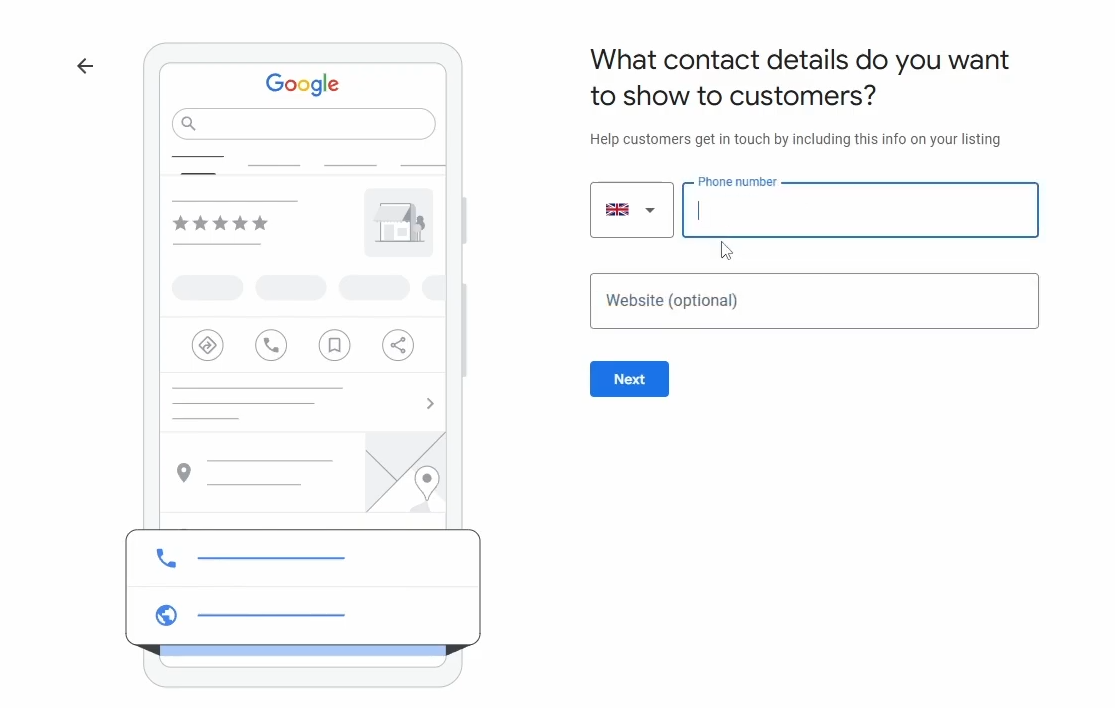
7. Contact Details
Enter your business phone number — this is what will be shown on your profile for customers to call. Also add your website URL if you have one.
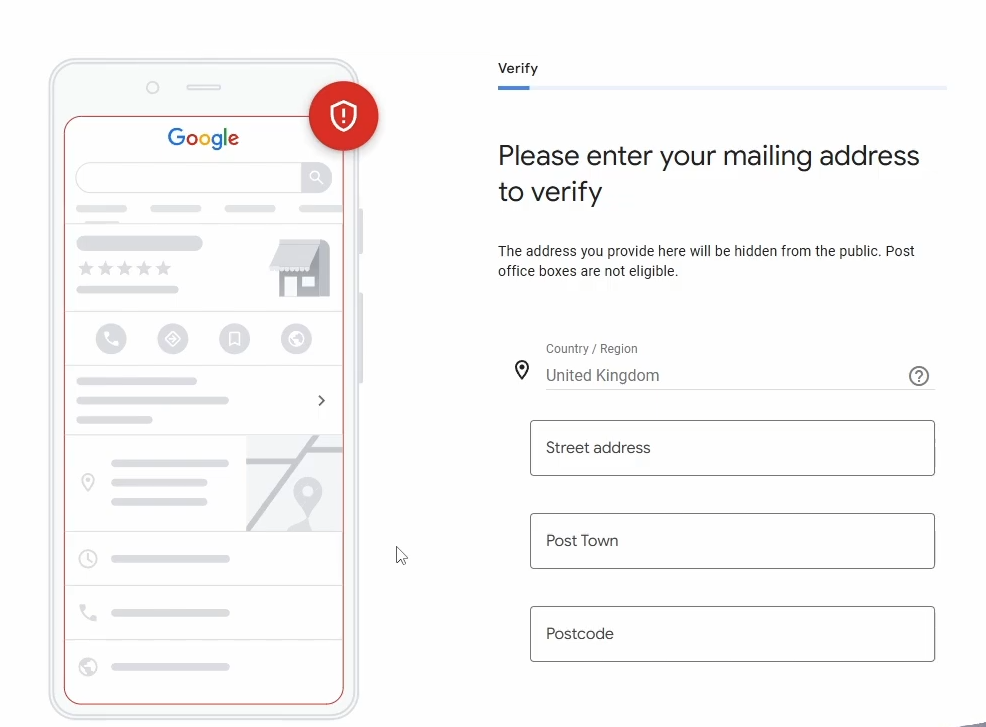
8. Verify Your Address
Google will ask you to verify your home address. This won't be shown publicly on your profile and can be turned off afterwards — it's only used to verify your account. Follow the on-screen instructions as the verification method can vary slightly for each person.
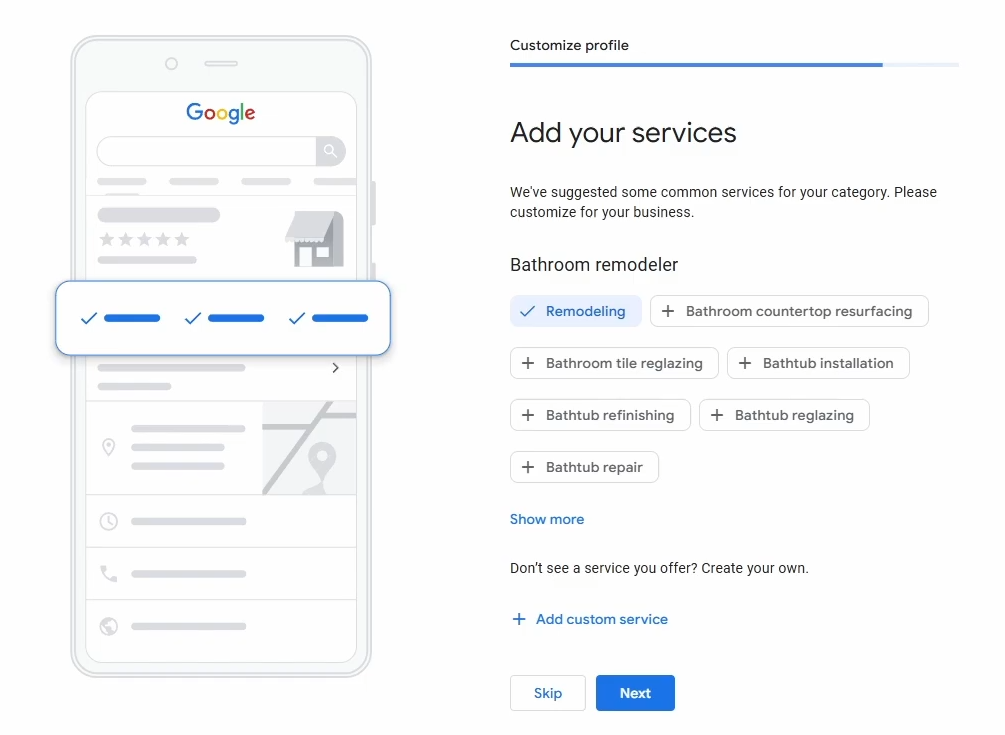
9. Add Your Services
Add the services your business offers. Use the ones Google suggests — most of what you do will already be there. I'd recommend adding 5–15 services rather than going overboard, and remember you can always update them later.
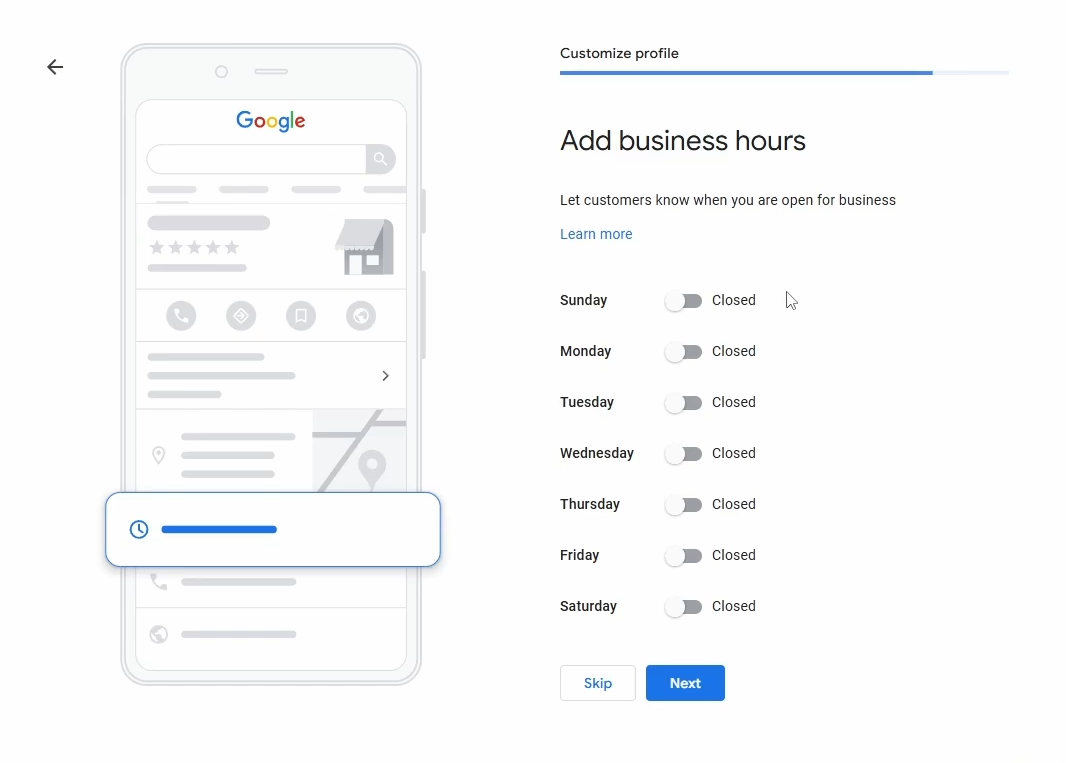
10. Business Hours
Enter your opening hours, or for service businesses, the hours you'd typically answer the phone. Make sure these match your Facebook page and any other online directories you're listed on.
11. Business Description
Write a description of your business and try to include your main keywords. For most businesses, mention the primary service you offer and your location — for example, a landscaper might include "Professional Landscaper in Nottingham" somewhere in the description.
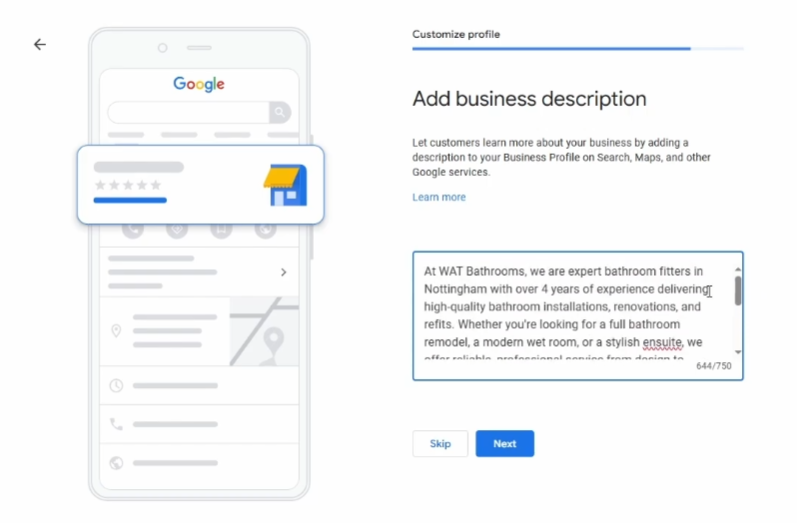
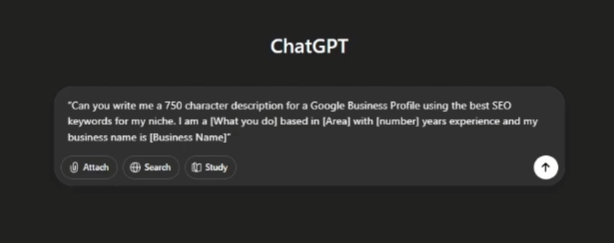
If you're struggling, you can use ChatGPT to write your first description. Just copy and paste this prompt and fill in the blanks:
"Can you write me a 750 character description for a Google Business Profile using the best SEO keywords for my niche. I am a [what you do] based in [area you serve] with [number] years experience and my business name is [Business Name]"
AI won't be as good as a professional copywriter, but it will do a solid job to get you started.
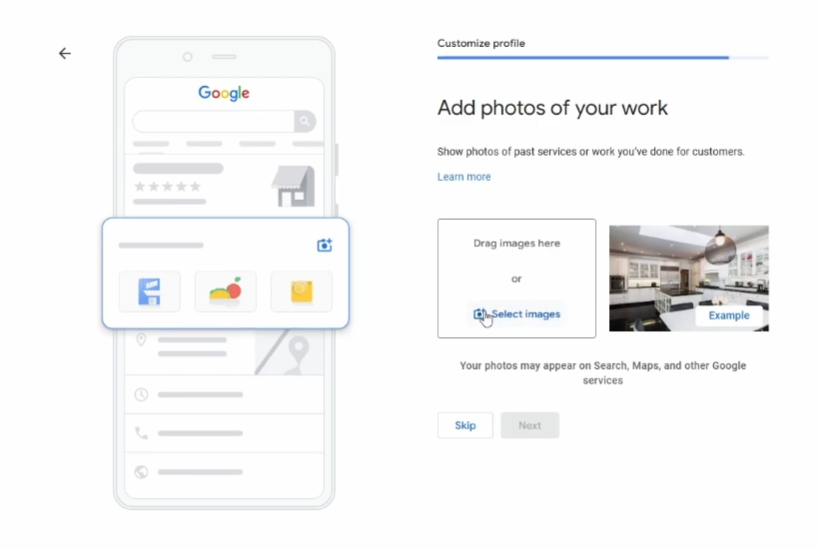
12. Add Photos of Your Work
Finally, add as many photos of your work as possible — the more the better. If a potential customer can see 50+ high quality photos and videos of real jobs, they are far more likely to trust you than if they see just one or two basic pictures.
BONUS: £400 Google Ads Credit
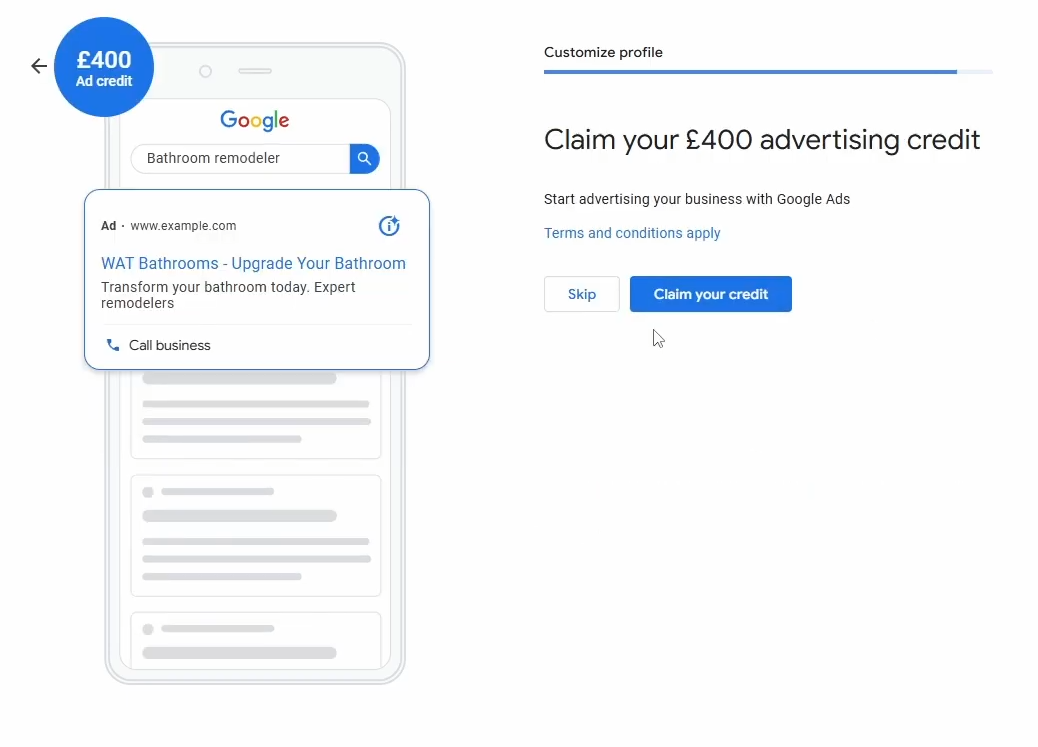
Once you've finished setting up, Google will ask if you want to sign up for Google Ads and claim £400 in advertising credit. Don't do this yet.
Once you create your ad account you have 60 days to spend £400 — if you do, you get £400 in free credit, so your next £400 of ads is essentially free. But if you don't spend £400 within that window, you lose the deal entirely. Only claim this when you are 100% ready to start advertising and have the budget set aside, as the 60-day clock starts when your ad account is created, not when you start spending.
There are also larger deals available if you go directly through the Google Ads website — for example, spend £1,200 and get £800 in credit, or spend £2,400 and get £1,200 in credit.