Adding projects to your website keeps your site active and improves your visibility on Google. Every new project you upload adds fresh content that search engines love — and it shows real examples of your work to potential customers. By adding photos, descriptions, and locations of completed jobs, Google can better understand what services you offer and where you work.
Video Walkthrough
Adding a Project
1. Access Your Project Submission Page
Open the project submission page using the unique link provided to you.
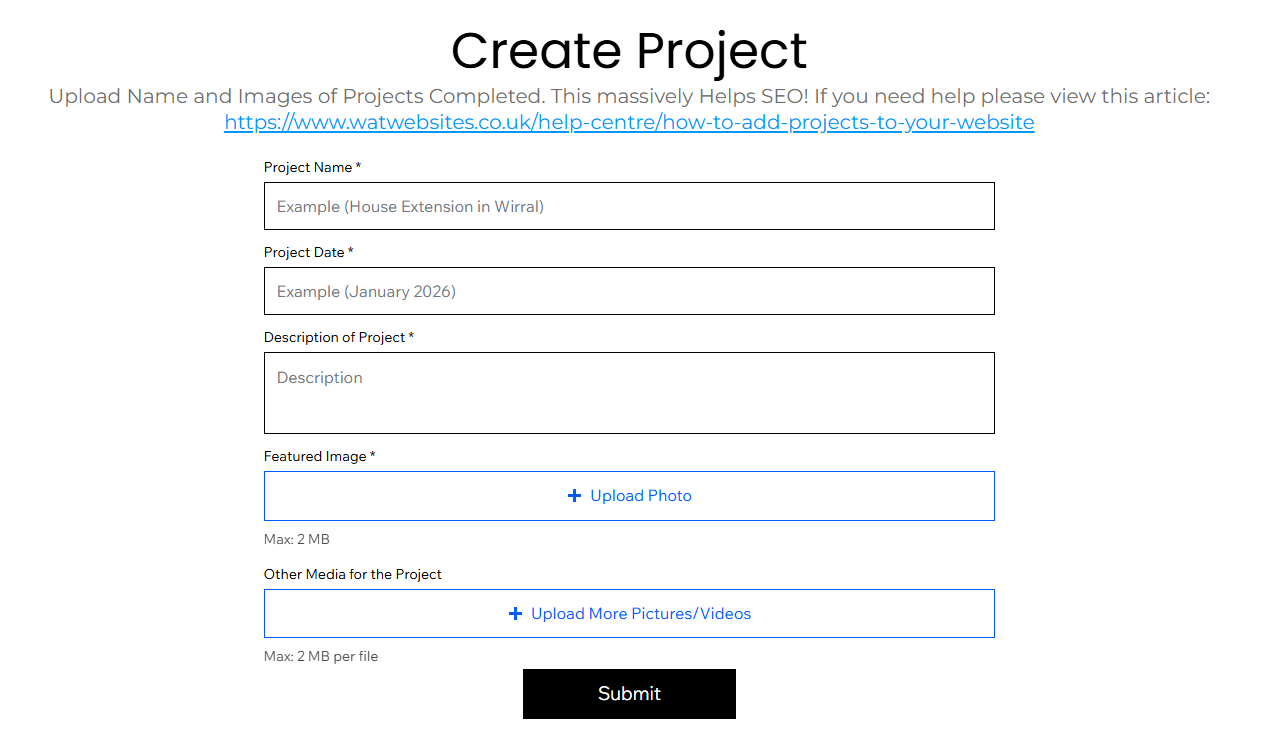
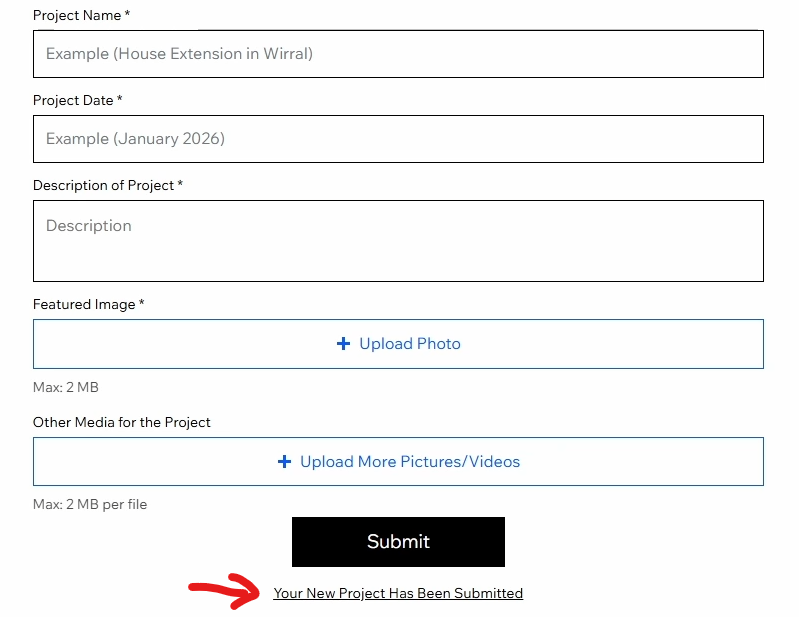
2. Project Name
Add a title that clearly describes the work and includes the location if possible. For example, "House Extension in Bebington" or "Garden Patio Installation in Nottingham". This helps both visitors and search engines understand what the project is about.
3. Project Date
Enter the date of the project. This is a text field, so you can write it in a natural format such as "January 2025" or "Completed in 2026".
4. Project Description
Write a description explaining what work was carried out, any challenges involved, and the final result. A few detailed sentences work best — this gives visitors context and helps with SEO.
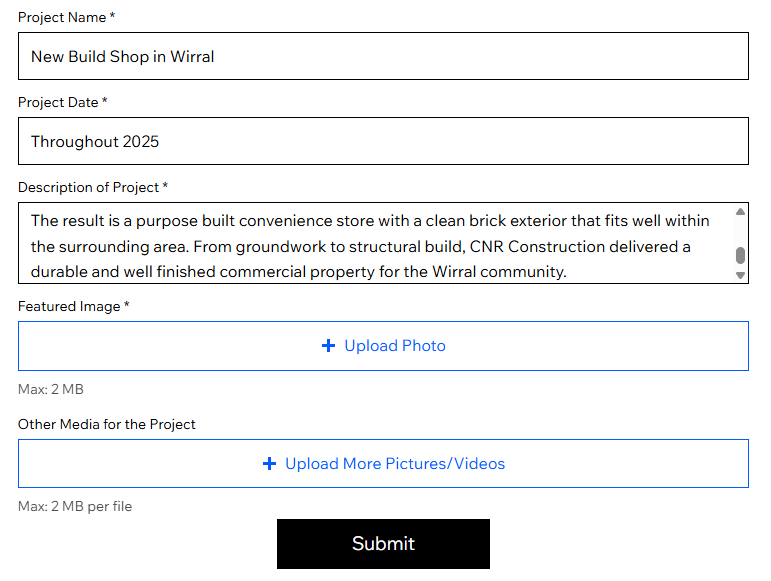
5. Renaming Files (Optional but Recommended)
Before uploading, rename your image files so they describe the work being shown. Instead of "IMG_4821", use something like "house-extension-wirral" or "new-patio-nottingham". This helps search engines understand the images and can improve your visibility in search results.
To rename a file, right-click it in File Explorer and select Rename at the top, then type the new name.
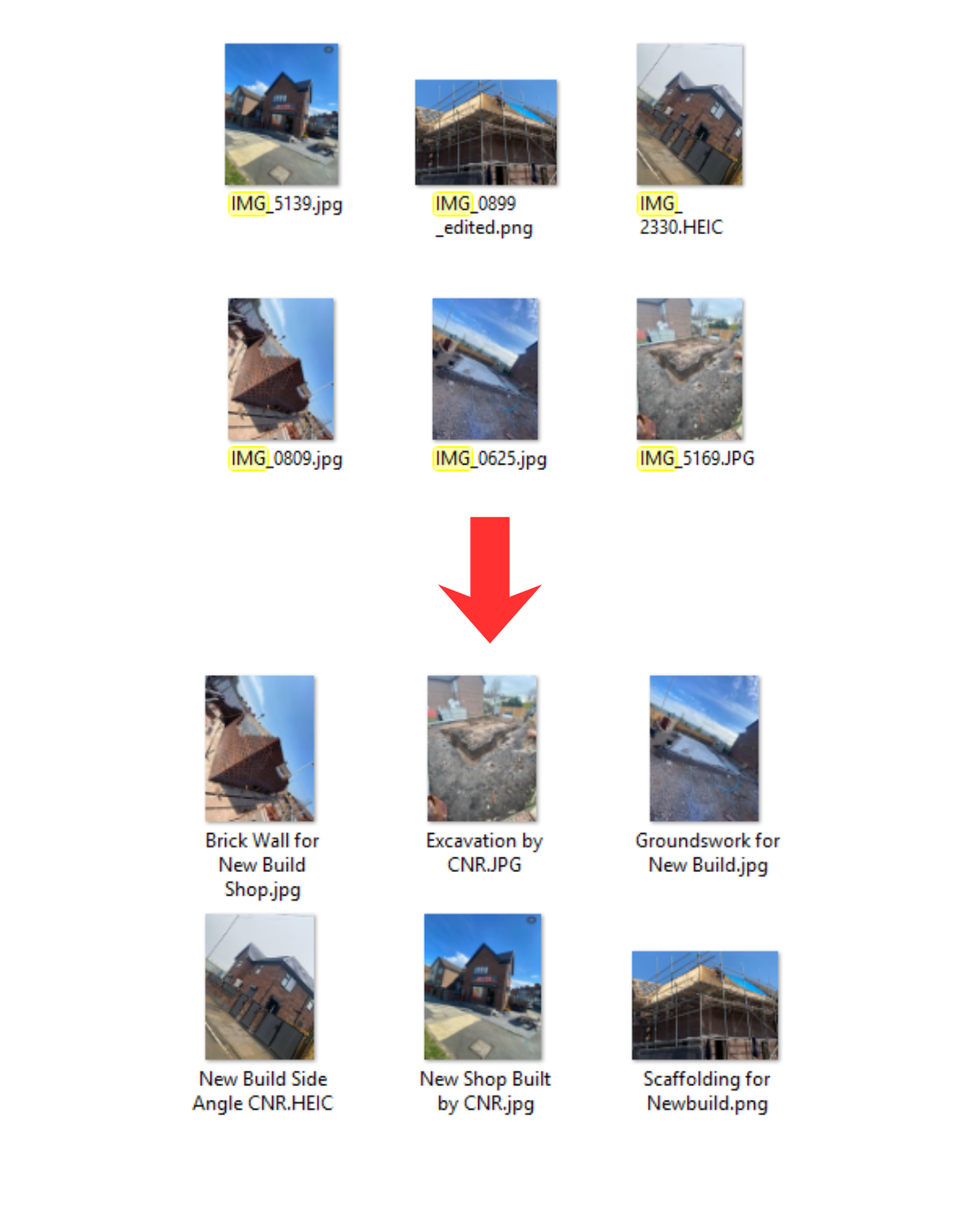
6. Feature Image
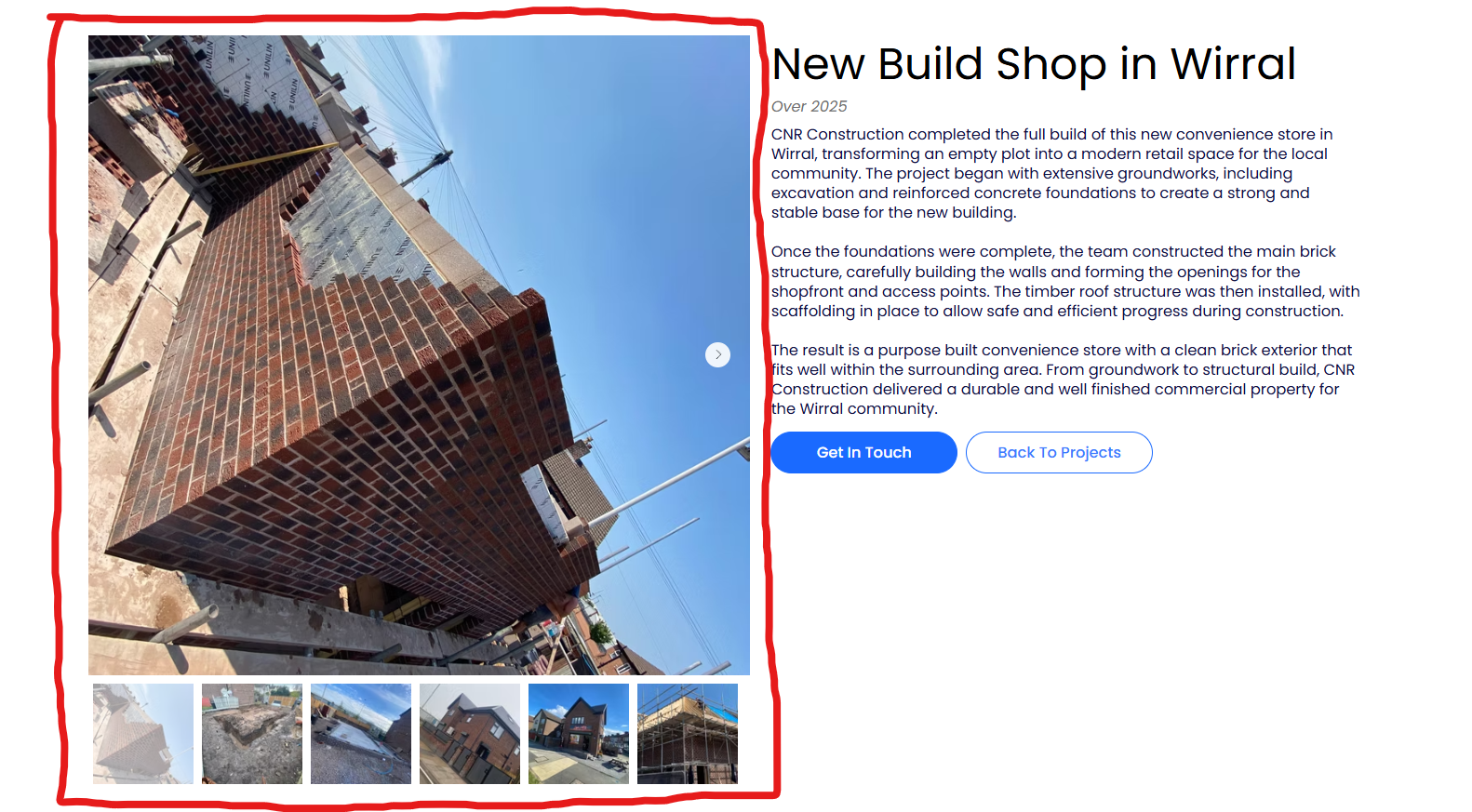
Upload the main image that represents the project. This will appear in the project listings — choose a clear photo that best showcases the finished work.
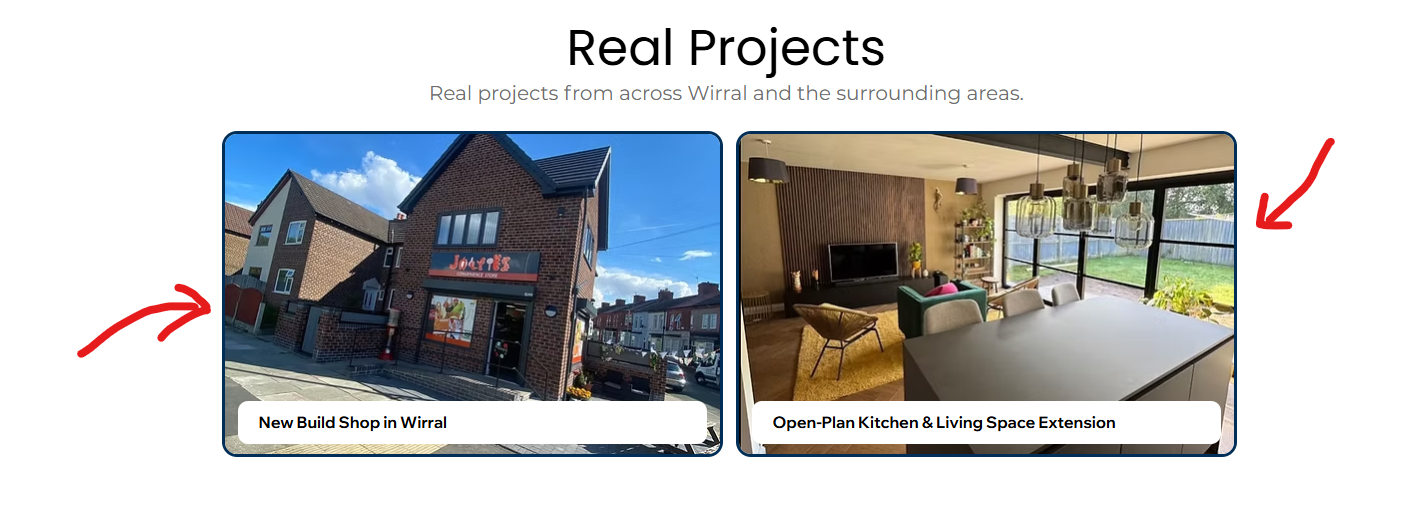
7. Other Media Uploads
Upload the image gallery — this should include multiple photos such as before, during, and after shots. The feature image should also be uploaded again here, as it does not automatically copy across.
8. Submit
Double-check all the information you've entered and click Submit. You should see a confirmation prompt at the bottom saying "Your New Project Has Been Submitted" and the form will clear so you can add another one.
Keep in mind it can sometimes take 1–2 minutes to upload — do not refresh or exit the page while it is processing.
Tips for Maximum SEO Impact
- Include the location in the project title every time
- Add at least 3 photos per project — Google rewards fresh image content
- Write 2–3 sentences of description minimum
- Aim to add at least 2 new projects per month
The more you add, the more Google sees your site as active and locally relevant.


